Please Note, The new Firestick Select models do NOT work.
The recommended device is the 4K Max, Order one HERE
Before starting please insure:
- Firestick is plugged into the tv Hdmi as well has powered and turned on.
- You’ve logged into your amazon account on the firestick
- You have connected to your 5Ghz WIFI, Please note 2.4ghz will not work properly and cause Buffering
#1 Go to the App Store on your firestick
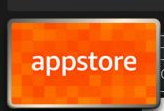
Download and install an app called “downloader” Do not open it yet. (please only get downloader app with this Icon,

Then Download an app called “VLC for Fire tv”

#2 Go to Firestick Settings (gear icon)
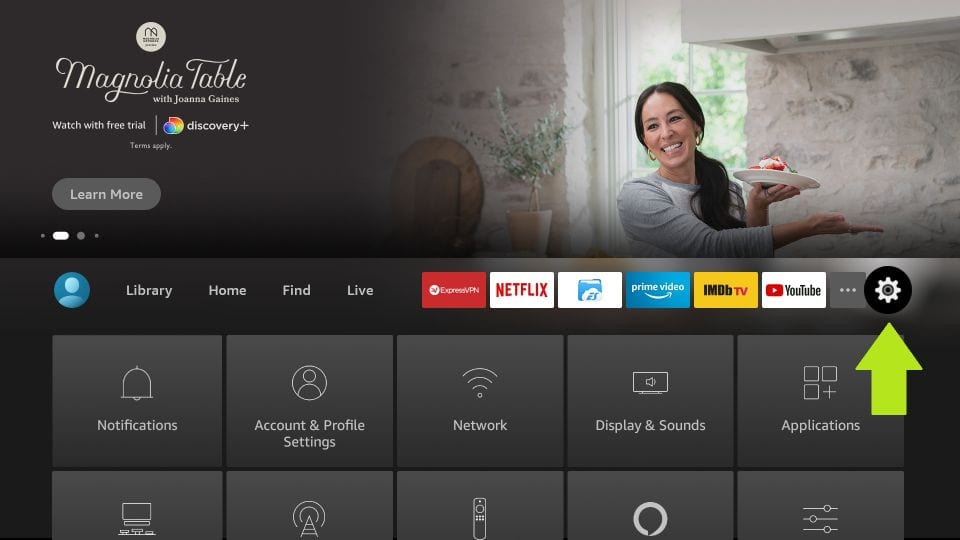
- Select “My Fire TV”
- Select “About”
- Select “Fire TV Stick” Click on this 7 times until “Developer Mode Enabled” appears. (Note this may be worded slightly different on different devices)
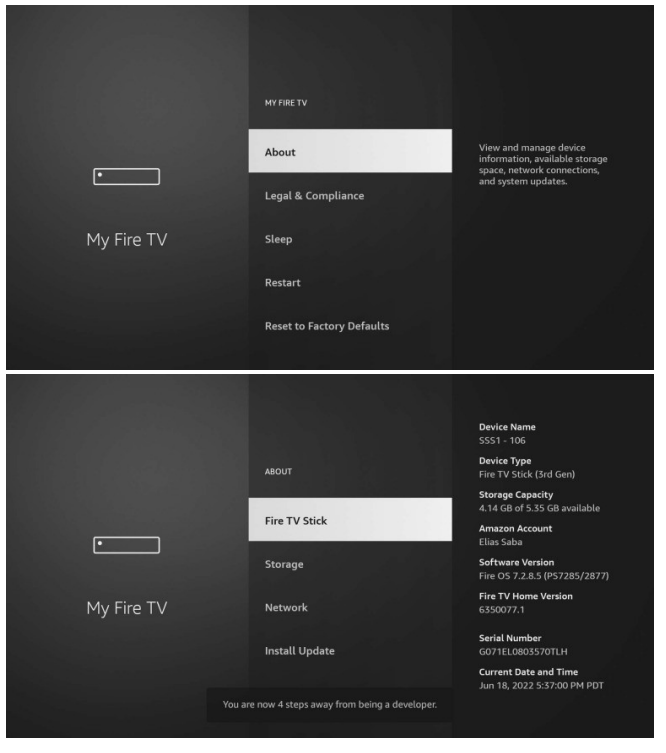
#3 Press back on the remote one time
- Scroll down and select “Developer Options”
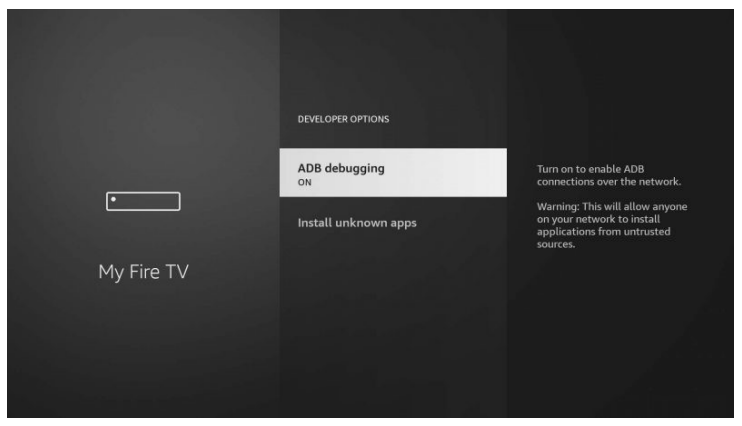
- Turn on “ADB Debugging” by selecting it.
- Scroll down to “Install unknown apps” enable this feature for Downloader
- —– Note: If this isn’t an option you will come back after step 4.
You can now Press the home button on the remote to go Home
#4 Open the downloader App
If your firestick supports voice you can press the microphone and say “Downloader”. Or you may need to go into the more apps tab to find where it installed, and open downloader:
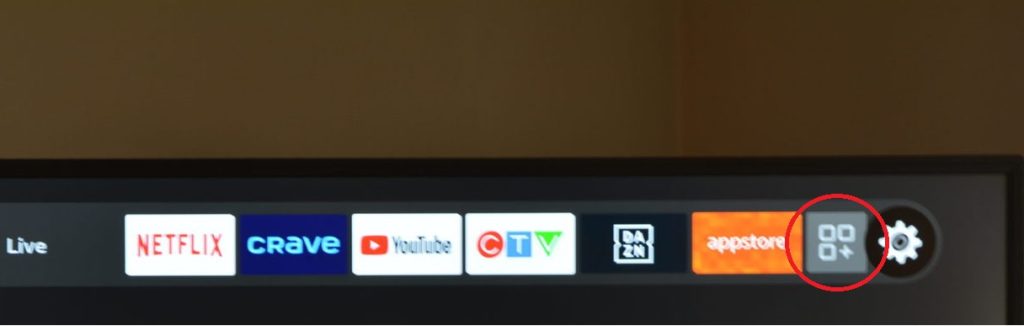
Open Downloader
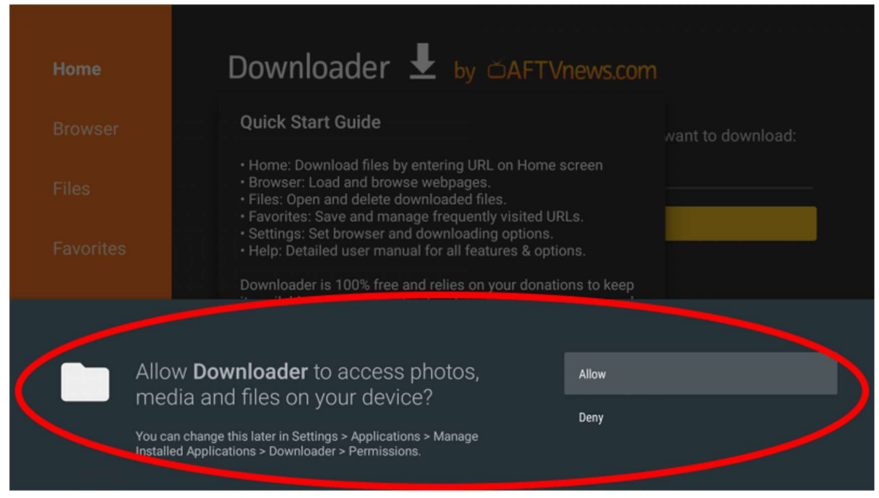
If it asks you to allow permissions, be sure to allow, or it will not work.
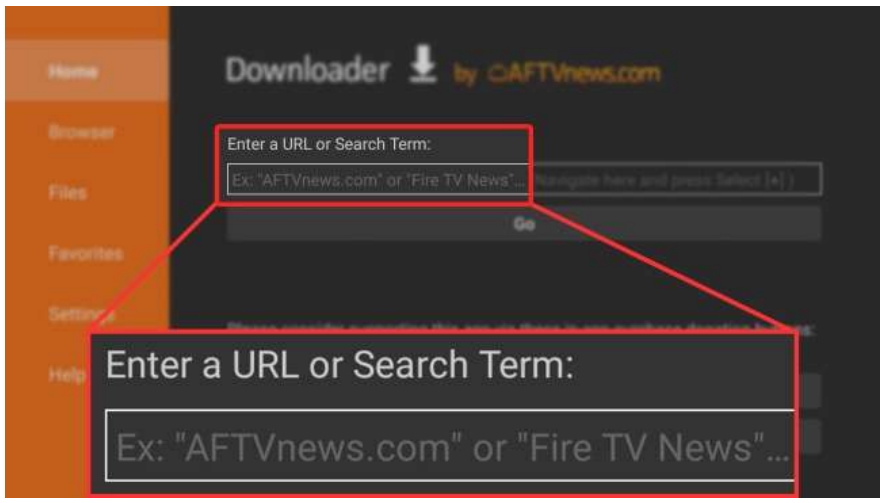
Within Downloader, you use the search bar to find and install the TV App.
Select your Player:
- Xciptv (OTT) Search for “120239”
- Splash Player Search for “746166
- Tivi-mate Search for “272483
- TvmatePRO “2578076” *This is a paid app $12.99 for lifetime access*
This is your choice, or maybe ask who referred you which they prefer. OTT is usually recomended.
After searching the number above, the firestick will ask to download it, be sure to allow. Once it has downloaded it will open, you can confirm the install and it should install.
Note: If in step 3 you could not give downloader permissions, you can go do that now. Than come back and finish the install.
Congratulations You’ve installed our player.
#5 Setup The TV App and Login.
Hit home on your TV remote.
Now you need to locate the App you installed. Go to your apps where you found downloader.
Find which ever app you installed.
WAIT Before opening the app, click the button on your remote with 3 horizontal lines (This is menu) and move the app to the front. It will Now appear on the home screen of your fire TV device.
Now wait for your admin to send your username and password. This could take up to 24hrs, please do not email them and ask.
On the OTT App (Pink TV Icon) You simply enter the username and password given to you.
For Splash/Smarters go to settings, “Add external player” under player selection set all options to “VLC”
IF YOU CANT ACCESS CONTENT AFTER SETTING UP
PLEASE REFER TO TROUBLESHOOTING GUIDE